
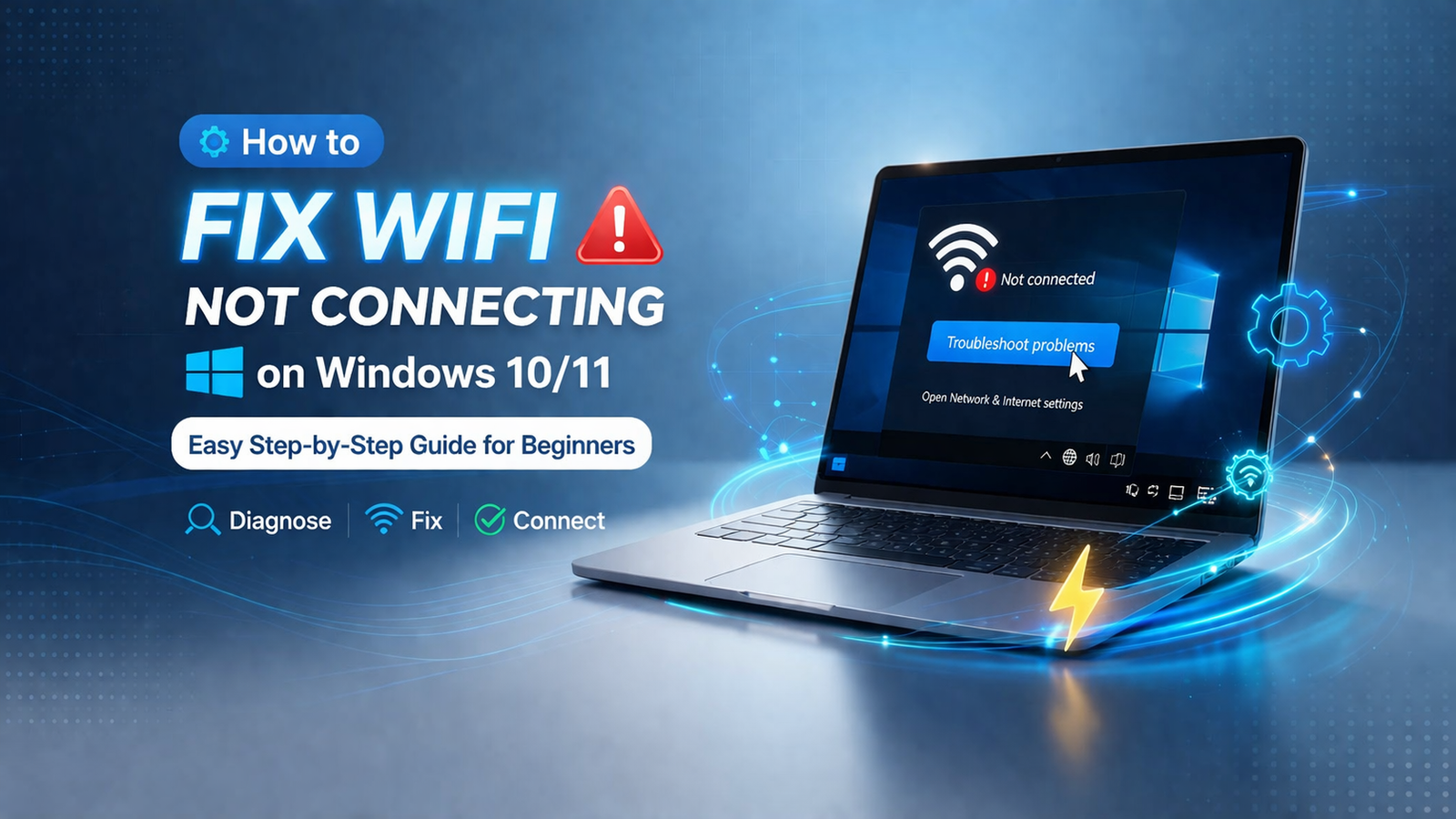
Are you frustrated because your WiFi is not connecting on Windows 10 or 11? You are not alone! This is one of the most common tech problems faced by beginners. The good news is — you can fix it yourself in just a few minutes by following this simple guide.
Why is My WiFi Not Connecting?
There are several reasons your WiFi may not be connecting on your Windows PC or laptop:
- Outdated or corrupted network drivers
- Incorrect IP or DNS settings
- Router or modem issues
- Windows firewall or antivirus blocking the connection
- WiFi adapter turned off
Step-by-Step Fix: WiFi Not Connecting on Windows 10/11
Step 1: Restart Your Router and PC
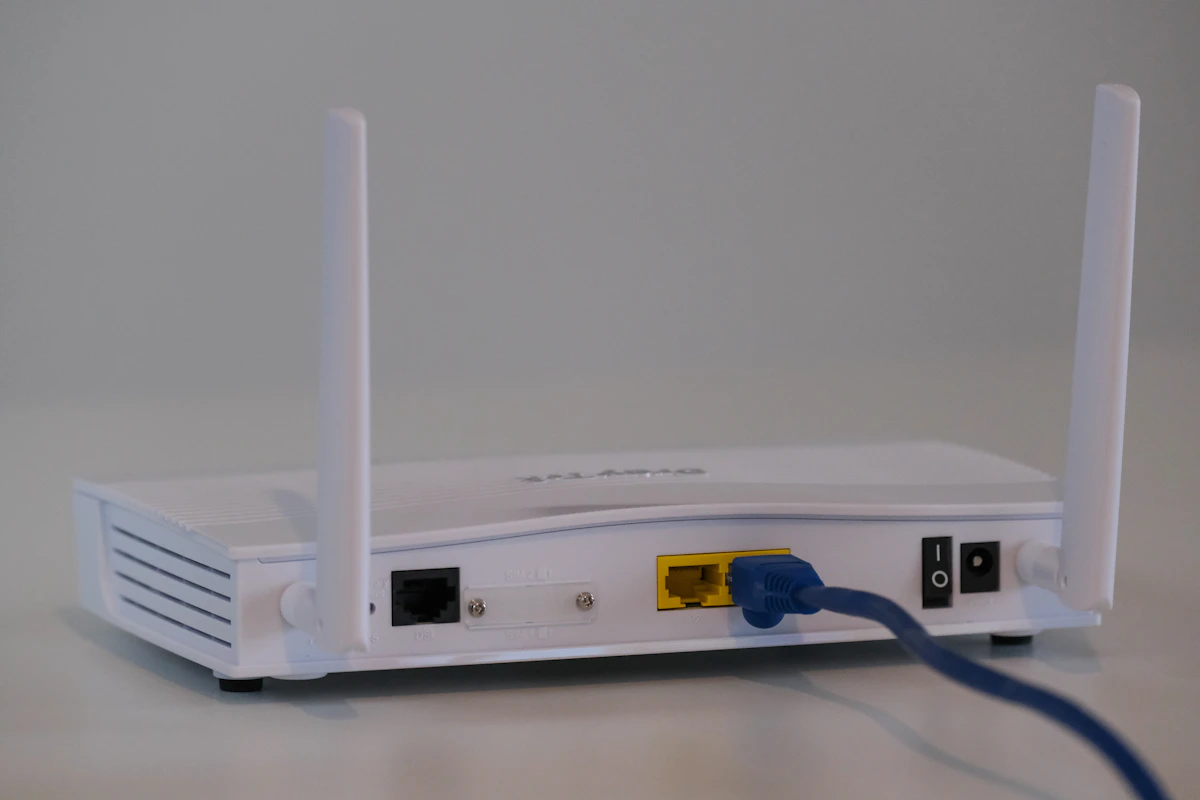
The first and easiest fix is to restart both your router and your computer. Turn off your router, wait 30 seconds, then turn it back on. Restart your PC as well. This clears temporary network errors.
Step 2: Run the Windows Network Troubleshooter
Windows has a built-in tool to automatically detect and fix WiFi issues:
- Press Windows + I to open Settings
- Go to System → Troubleshoot → Other Troubleshooters
- Click Run next to “Internet Connections”
- Follow the on-screen instructions
Step 3: Update Your Network Driver
An outdated network driver is a very common cause of WiFi issues. Here’s how to update it:
- Right-click the Start Menu and select Device Manager
- Expand Network Adapters
- Right-click your WiFi adapter and select Update Driver
- Choose Search automatically for drivers
Step 4: Reset TCP/IP and DNS
Open Command Prompt as Administrator and type these commands one by one:
netsh winsock reset
netsh int ip reset
ipconfig /release
ipconfig /flushdns
ipconfig /renew
After running these commands, restart your computer and check if WiFi is working.
Step 5: Forget and Reconnect to WiFi Network
Sometimes simply forgetting the WiFi network and reconnecting fixes the issue:
- Click the WiFi icon in the taskbar
- Right-click your network → Forget
- Reconnect and enter your password again
Final Thoughts
These are the most effective ways to fix WiFi not connecting on Windows 10 and 11. Most users solve the problem with Steps 1–3. If none of these work, consider contacting your Internet Service Provider (ISP).
Found this helpful? Share it with a friend who is also facing WiFi problems! 😊